Test and Fix
In the previous section, Claude Code generated the entire JSON Formatter app from our PRD and design documents. Now we need to verify that everything works correctly — and fix anything that doesn't.
This is a critical step. AI-generated code often compiles and looks right, but may have subtle issues: a button that doesn't trigger its handler, a tree view that doesn't expand nested nodes, or a Web Worker that silently drops messages. Testing catches these before they become hard-to-trace bugs.
Important: Before each code change in this chapter, make sure you push your previous changes to GitHub. This gives you a clean checkpoint to revert to if something goes wrong — and it's a good habit for any iterative development workflow. If you haven't set up a GitHub repository yet, follow the GitHub setup guide.
git add -A && git commit -m "describe your changes" && git push
Verify the Build#
After Claude Code finishes generating all the files, start the dev server and test the app in your browser:
npm run dev
Walk through each feature systematically. Don't just glance at the page — interact with every control and check the result:
- Format — Paste minified JSON and click Format. It should produce clean, indented output.
- Minify — Click Minify. The output should collapse to a single line with no whitespace.
- Validation — Type invalid JSON (e.g., remove a comma). The status bar should show an error with the line and column number. Fix it, and the status should return to valid.
- Tree view — Switch to the tree view tab. Nodes should be collapsible, show type badges, and support click-to-copy paths.
- Code view — Switch back to code view. The output should have syntax highlighting.
- File upload — Click Upload and select a
.jsonfile. Its contents should load into the input editor. - Copy and download — Click Copy (check your clipboard) and Download (check the downloaded file).
- Settings — Click the gear icon. Change indent size, toggle sort keys, toggle auto-format on paste. Settings should apply immediately and persist after a page refresh.
- Stats — The status bar should show file size, line count, key count, and max nesting depth for valid JSON.
Run the Tests#
Next, run the unit test suite:
npm test
All tests should pass. If any fail, Claude Code can read the test output and diagnose the issue:
Ask AI to diagnose and fix test failures.
Fixing Issues#
When you find something that doesn't work as expected — whether through manual testing or failing tests — describe the issue to Claude Code with as much context as possible. The more specific your prompt, the better the fix.
Compare these two approaches:
- Bad: "The tree view doesn't work"
- Good: "The tree view renders the first level of keys but doesn't expand nested objects when I click on them. The click handler might not be toggling the expanded state correctly."
The bad prompt forces the AI to reproduce the bug, guess what "doesn't work" means, and figure out where to look. The good prompt tells it exactly what's happening, what should happen, and where the bug likely is — so it can jump straight to the fix.
You can also point Claude Code back to the design document for reference:
Ask AI to fix bugs by referencing the design.
If you find multiple issues, you can fix them all in one prompt or one at a time — whichever you prefer.
Common Issues#
Here are some issues you might encounter with AI-generated code, and how to handle them:
- Import errors or missing modules — The AI may reference a file path that doesn't match what it actually created. Ask Claude Code to check for mismatched imports and fix them.
- Web Worker not loading — Worker paths can be tricky in Next.js. If the worker fails silently, ask Claude Code to check the worker instantiation and ensure the path is correct for the bundler.
- State not updating — If a button click doesn't seem to do anything, the issue is often a missing state setter or an event handler that's not wired up. Tell Claude Code which button and what you expected to happen.
- Styling issues — If the layout doesn't match the design (panels overlapping, toolbar misaligned, etc.), describe what you see and what the design specifies. A screenshot helps if you can describe it.
Example: Fixing a Real Error#
Here are some real issues we encountered when building this project, along with how we reported them to Claude Code.
Console Error: Infinite Re-render Loop#
After Claude Code generated the app, the browser console showed this:
This is a React error caused by useSyncExternalStore receiving a getSnapshot function that returns a new object on every call, triggering an infinite re-render loop. The fix is to memoize the snapshot so it returns the same reference when the underlying data hasn't changed.
Rather than debugging this yourself, you can paste the error directly to Claude Code:
Ask AI to fix the infinite loop in SettingsContext.
Notice how the prompt includes the exact error message, the file and line number. This gives Claude Code everything it needs to jump straight to the fix — no guessing, no reproducing.
Visual Bug: Line Numbers Misaligned on Wrapped Lines#
Here's a visual bug where line numbers get misaligned when long lines wrap:
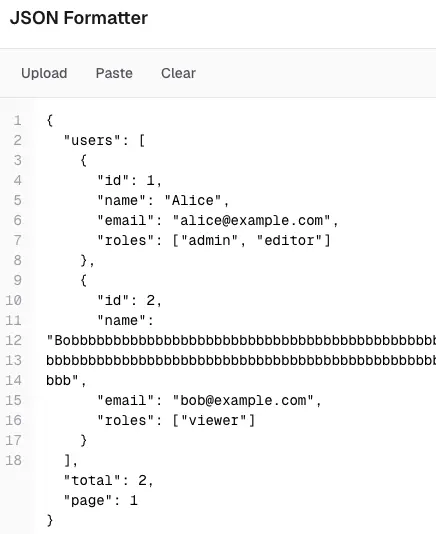
The line numbers on the left should stay aligned with the first line of each wrapped row, but instead they shift out of sync. You can describe this to Claude Code with a prompt like:
Ask AI to fix line numbers misaligning on wrapped lines.
UI Polish: Refining Button Styles#
Not every issue is a bug — sometimes the generated UI just looks plain. AI-generated components often use minimal styling with basic text buttons and no icons. Here's what the toolbar looked like after the initial generation:

The buttons are functional, but they look bare — no icons, no visual hierarchy, and no hover feedback. A quick prompt to Claude Code can turn these into polished, professional-looking buttons:
Ask AI to add icons and improve button styling.
After applying this prompt, the toolbar looks much better:

This is a great example of how you can iterate on the UI after the initial generation. The AI gets the functionality right, and you refine the look and feel through follow-up prompts.
Wrapping Up#
Once all features work and all tests pass, you have a fully functional JSON Formatter — built entirely through AI-assisted development, guided by a PRD and technical design.
The key takeaway: the quality of AI-generated code depends heavily on the quality of the instructions you give it. The time we spent writing and refining the PRD and design wasn't overhead — it was the most leveraged work in the entire project. With precise specs, Claude Code can implement an entire app in a single prompt — and with targeted testing and clear bug reports, you can quickly close the gap between "generated" and "production-ready."